
Optional premium upgrades for your Minecraft setup
Try the free sensitivity adjustments first. If you also want different mouse weight, a more comfortable shape or adjustable controller hardware, compare these three options for your input device.
Affiliate disclosure: As an Amazon Associate I earn from qualifying purchases.
Logitech G PRO X SUPERLIGHT 2
A 60g wireless mouse for players who prefer a light, simple setup. Consider it if your current mouse feels heavy during larger movements.
Check Logitech SUPERLIGHT 2 on Amazon →Razer Basilisk V3 Pro 35K
A right-handed wireless mouse with a thumb rest and 13 customizable controls. A useful alternative when shape and accessible buttons matter more than minimum weight.
Check Razer Basilisk 35K on Amazon →Xbox Elite Wireless Controller Series 2
Adjustable-tension thumbsticks and interchangeable components offer more physical customization for supported Xbox and Windows Bedrock setups.
Check Xbox Elite Series 2 on Amazon →These are feature-based recommendations, not hands-on test results. Compare the current Amazon price, seller, condition and included accessories before ordering. Hardware purchases are optional; sensitivity settings are free.
Buying Minecraft for another player?
If your view swings past the block you meant to select, sensitivity may be too high for your current setup. If every turn needs repeated mouse movements, it may be too low. The goal is a comfortable balance: enough movement to look around, with enough control to stop on a small target.
This guide explains where to look on Java and Bedrock, how to compare settings without changing everything at once, and how to separate camera speed from problems such as stuttering or controller drift. It does not offer a universal competitive setting or claim that a particular mouse will improve your results.
Choose the correct Minecraft sensitivity settings
| Your setup | Where to begin | What to check |
|---|---|---|
| Java with a mouse | Options → Controls → Mouse Settings | Sensitivity and the displayed value |
| Bedrock with a mouse | Settings → Keyboard & Mouse | Mouse sensitivity |
| Bedrock with a controller | Settings → Controller | Look sensitivity for the controller |
| Bedrock with a touchscreen | Settings → Touch | Camera sensitivity and your selected touch layout |
| Modded Java or a custom client | The game’s controls menu | Whether the client changes the normal layout |
These are starting paths, rather than a promise that every historical release uses identical labels. Check the edition and version shown by your game when a menu differs. A launcher chooses which game instance you open; it is not a reason to assume its own settings include Minecraft’s camera sensitivity.
How to change sensitivity in Minecraft Java
1. Open the game’s options
From the main menu, select Options. When already playing, press Escape and open Options from the pause menu. If you are on a multiplayer server, move somewhere safe before adjusting settings: opening a menu does not guarantee that other players or the server stop.
2. Find the mouse settings
Open Controls and look for Mouse Settings. Find the Sensitivity control. In some older or modified versions, it may be displayed directly in the controls screen. Follow the setting’s actual label rather than searching for a button from an outdated tutorial.
3. Record the original value
Write down the value currently shown. A quick screenshot of your settings is useful before experimenting. If your mouse has selectable DPI profiles, note which one is active as well. This gives you a clear way back if the new configuration feels worse.
4. Make a small adjustment
Move the sensitivity control a little lower if you repeatedly turn past your target. Move it higher if you struggle to turn within your available mouse-pad space. Do not jump between the extremes unless you are simply checking that the setting changes the camera.
5. Return to the world and compare
Use the menu’s Done or back controls to return to gameplay. Compare the result in the same practice area before adjusting again. If a custom client presents a confirmation control, follow its visible interface. Do not assume every edition has a “Save and Close” button.
How to change sensitivity in Minecraft Bedrock
Open Settings and choose the controls section matching your input device. For a mouse, start with Keyboard & Mouse. For a gamepad, use Controller. For touch play, use Touch and inspect the available camera setting. Changing the mouse slider will not necessarily solve a controller problem.
Keep the device connected while reviewing its options, and use the same device for the comparison. A touchscreen session can feel very different from a controller connected to the same tablet. Record both the setting and the device so that a later change makes sense.
On Xbox, PlayStation or Nintendo hardware, start with the game’s Controller section when playing with a gamepad. The menu’s appearance and available options can vary across releases and platforms. Identify your actual game version rather than assuming that every console edition follows a PC Java tutorial.
Touch sensitivity: tune the camera and layout together
On a phone or tablet, looking around involves dragging on the screen. A high camera setting can make a small movement turn farther than expected. A low setting can require longer swipes. First identify the touch layout you are using, then make a modest change to the camera sensitivity.
Practice looking between nearby landmarks without changing your layout at the same time. After that feels comfortable, try a short movement route. If the controls are crowded or difficult to reach, that is a separate layout question. Increasing camera speed will not automatically make inconvenient button placement easier.
Keep your normal playing position during the test. Switching between a tablet on a desk and a phone held in your hands changes the way you interact with the screen. Choose a setting that suits your regular device and posture, rather than copying a value from someone using different hardware.
A practical method for finding a comfortable sensitivity
Use one quiet practice area
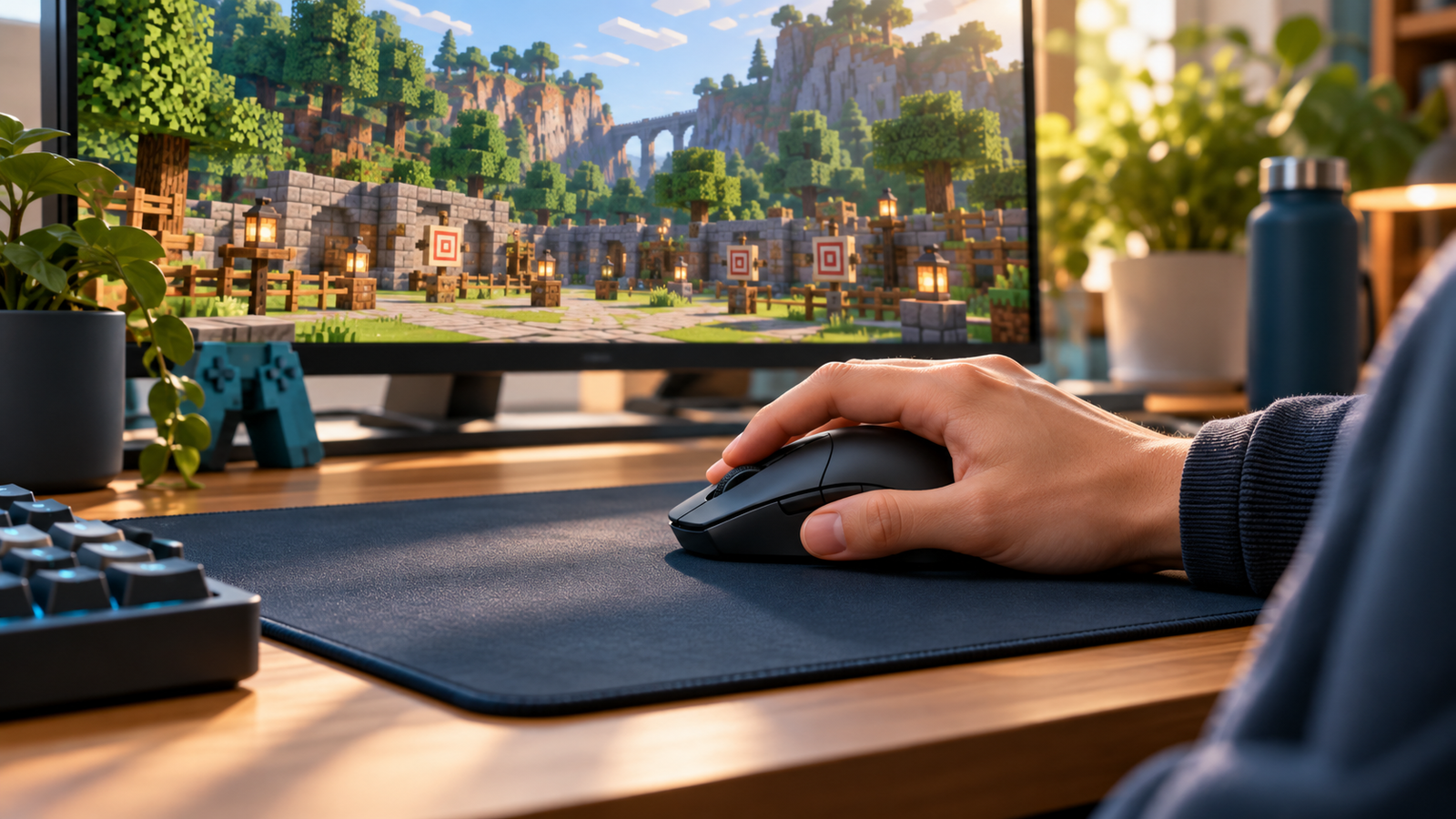
Choose a familiar, low-risk place with a few clear landmarks. You might use a wall with different blocks, a doorway and a distant tree. Avoid testing beside a cliff or in a fight. A repeatable location makes the difference between settings easier to notice.
Check small corrections first
Move the crosshair between two nearby blocks and stop on each. If you often pass the intended block and need to move back, try a slightly lower setting. If reaching the next block feels unnecessarily laborious, consider a small increase. Repeat with deliberate movements, rather than judging a single hurried attempt.
Then check larger turns
Look from a forward landmark toward another landmark behind or beside you. On a mouse, check whether the movement fits comfortably within the space available. On a controller or touchscreen, check whether the turn feels manageable. A setting that works for tiny adjustments must also allow ordinary exploration.
Try an actual activity
Place a short row of blocks, open a door and walk around a small structure. If you mainly build, include the careful placement you normally do. If you explore, include scanning the surroundings while moving. Your everyday activity is more useful than chasing a number described as the best setting online.
Keep a short comparison log
Record the original value, the new value and a simple observation such as “less overshooting, turning still comfortable.” Keep the better of the two, then test one further adjustment only if needed. This prevents an endless series of changes with no clear baseline.
Mouse DPI and in-game sensitivity are different controls
DPI is a mouse setting, while Minecraft sensitivity is a game setting. Both can affect how your physical movement translates into camera movement. Keep the mouse’s DPI unchanged while comparing the Minecraft slider. Otherwise, a faster camera could come from either adjustment.
If your mouse has a DPI button, check whether you pressed it accidentally. Some devices also use different software profiles for different applications. Review the settings available for your own mouse; do not assume that an unverified shortcut or recommended number applies to every model.
Changing operating-system pointer speed is another separate action. It may change how desktop and menu interaction feels, and its relationship with gameplay input depends on the game’s input handling. Avoid changing Windows settings, mouse profiles and Minecraft sensitivity together. Start with the game setting and diagnose each remaining issue separately.
Compare premium mouse upgrades by fit
If your existing mouse works comfortably, keep it and finish the free adjustments above. If you want a hardware upgrade, choose between lighter weight and a fuller right-handed shape.
| Product | Best fit | Main consideration |
|---|---|---|
| Logitech SUPERLIGHT 2 | PC players wanting a lightweight mouse | 60g design; check hand fit |
| Razer Basilisk V3 Pro 35K | Right-handed players wanting a thumb rest and more controls | A different shape, rather than the lightest option |
| Xbox Elite Series 2 | Supported Xbox and Windows Bedrock controller setups | Verify platform and full bundle contents |
Product specifications: Logitech SUPERLIGHT 2; Razer Basilisk V3 Pro 35K; Xbox Elite Series 2.
Why does the mouse feel wrong after an update?
First check the actual version and any changed settings. A current release can alter input handling or remove an older option. For example, the official Java 26.3 release notes say the Raw Input mouse setting was removed and in-game input now uses relative mouse mode. Searching for that missing toggle in this release is not a useful repair step.
For an older installation, use documentation matching that release rather than applying current menu instructions blindly. For a modded installation, also record the client and mod versions. Keep a copy of important worlds before changing installations, and avoid reinstalling the whole game as the first response to a camera-speed problem.
If you need help, describe what changed: the game version, input device, original sensitivity and whether the problem happens in menus or while looking around. A clear comparison is more useful than saying that every control is broken. Do not share account credentials when requesting support.
Fast camera movement, stutter and drift need different checks
| Symptom | Useful first check | What not to assume |
|---|---|---|
| Smooth movement, but frequent overshooting | Lower sensitivity slightly | That you need a new mouse |
| Turning is too slow | Raise sensitivity slightly | That maximum sensitivity is best |
| Camera looks jerky or freezes | Investigate performance or input interruptions | That a slider fixes frame pacing |
| Controller view moves while untouched | Check controller input and drift | That low sensitivity repairs hardware |
| Only a custom client behaves differently | Compare its settings with a normal instance | That all launchers have the same input menu |
Keep the test narrow. If the camera moves when you are not touching the controller, note whether the same input issue appears elsewhere. If the world visibly stutters, investigate that separately before deciding that the sensitivity value is wrong. A useful diagnosis leads to a relevant fix, instead of an unrelated purchase.
OptiFine, older Java releases and third-party launchers
For OptiFine or another modded Java setup, begin inside Minecraft’s own options and controls. Do not treat the mod as a separate application with a universal Sensitivity page. A custom client may add or rearrange controls; inspect its visible settings and consult documentation for that exact version.
If you launched an older release such as 1.16.4, look for the mouse sensitivity setting within its Controls or Mouse Settings menus. The setting location matters more than the year printed in an old article. Record the displayed value rather than assuming that the interface always uses a decimal range from 0.1 to 1.0.
A third-party launcher’s account, download or installation settings are not the same as in-game camera controls. Open the game instance and make the adjustment there. This guide does not verify or endorse third-party launcher security or account handling.
Do you need to buy anything?
Usually, no. Adjusting sensitivity is part of the game’s controls. Try the settings, available playing space and a repeatable comparison first. If a device has a separate fault, identify that fault before shopping. A digital game key, subscription or add-on will not repair excessive camera speed.
Only compare another Minecraft copy when you have a separate reason, such as buying the game for another player or a different supported device. Check the actual product, platform and region. A Java/Bedrock PC listing is not automatically a Nintendo or PlayStation purchase, and a DLC or currency item is not a base-game license.
Frequently asked questions
What is the best Minecraft sensitivity?
There is no single value for every player. Your input device, available space and preferred activities affect what feels comfortable. Compare small adjustments using the same setup.
Will higher sensitivity make me better at PvP?
Higher sensitivity allows faster turning for the same input, but can make small corrections harder. It does not guarantee better results. Test comfortable control before copying another player’s settings.
Why can’t I find Raw Input in Java 26.3?
The official release notes say that setting was removed. In-game mouse input uses relative mouse mode in that release. Use guidance for your installed version.
Can I use the same number in Java and Bedrock?
Do not assume the numbers produce identical movement across editions or devices. Compare the actual camera movement in each setup.
Does changing sensitivity require cheats?
No. Use the game’s controls settings. You do not need a command, paid add-on or another license simply to adjust sensitivity.
Continue with a comfortable setup
Record your current setting, select the menu matching your input device, then compare one small change in a safe practice area. Keep DPI and other controls steady during the comparison. If the symptom is stutter or drift instead, investigate that issue separately.
For related guides, see clearing inventory while preserving useful items and Minecraft text formatting. The previously linked video walkthrough remains available; compare its version with yours before following its menus.
Official references: Minecraft controls overview; Java 26.3 input changes. Menu guidance should be checked against your installed edition and version. We have not tested your device or world.
4 thoughts on “How to Change Sensitivity on Minecraft: Mouse, Controller & Touch”
Comments are closed.